Introduction
WooCommerce fashion stores face a fundamental scaling challenge: every product and variant requires professional on-model photography to drive conversions, yet traditional photoshoots cost $150-$1,500 per final image and take days to execute. For stores managing hundreds of SKUs across multiple color and style variants, these costs compound into six-figure annual photography budgets. Meanwhile, customers increasingly expect on-model imagery—research shows 20-30% higher conversion rates for on-model photos versus flat lays, and ASOS reported a 22% reduction in returns after implementing AI-enhanced product photography.
AI model photo automation solves this by converting packshots or flat-lay images into photorealistic on-model visuals at a fraction of traditional costs. Results depend heavily on setup quality, though. Input image resolution, tool selection, file naming conventions, and how images map to WooCommerce products all determine whether automation delivers publishable results or creates more rework.
This post covers the complete workflow: from packshot preparation to WooCommerce product assignment, so you can scale visual content production without ongoing photoshoot expenses.
Key Takeaways
- AI tools convert flat packshots into on-model images, then assign them to WooCommerce products via SKU-based workflows
- Four stages drive the workflow: packshot preparation, AI generation, media library upload, and product/variation assignment
- Results depend on image quality, fashion-specific AI tools, and consistent SKU naming conventions
- Best suited for growing catalogs, multiple variants, or limited budgets; human review before publishing is essential
How to Automate AI Model Photos for WooCommerce
Step 1: Prepare Your Product Packshots or Flat-Lay Images
Input image types that work with AI fashion tools:
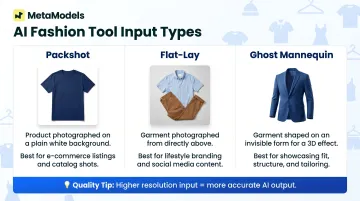
AI model photo platforms accept three primary input formats:
- Packshots - product photographed on white or neutral background without a model
- Flat-lay images - garments laid flat and photographed from above
- Ghost mannequin shots - product worn on an invisible mannequin, creating a 3D appearance without showing the form
The cleaner and higher-resolution your input, the better the AI output. Fashion-specific AI platforms like MetaModels.ai preserve actual garment details by draping the photographed fabric onto AI models, but this accuracy depends on clear source material. Blurry, low-contrast, or poorly lit inputs produce distorted outputs that require regeneration.
Critical file naming convention:
Establish SKU-based naming from the start: SKU-001-red-front.jpg. This enables bulk upload and automated WooCommerce assignment without manual rematching. Use lowercase letters and hyphens (not underscores or spaces) as WordPress treats hyphens as word separators.
Example naming structure:
SKU-001-red-front.jpg(featured image)SKU-001-red-back.jpg(gallery position 2)SKU-001-red-detail.jpg(gallery position 3)
Technical requirements:
- Minimum resolution: 1024x1024 pixels (WooCommerce recommends 800x800 minimum, but higher resolution provides flexibility for cropping and zoom features)
- Background: Clean white or neutral background yields better AI results and smaller file sizes
- Multiple angles: Supply front, back, side, and texture close-up shots per garment—AI tools require these references to minimize garment hallucination and ensure fabric accuracy
- Format: JPEG or PNG accepted by most platforms; avoid embedded EXIF metadata that can cause WooCommerce import errors
Step 2: Generate AI Model Photos Using a Fashion AI Tool
The core AI generation step:
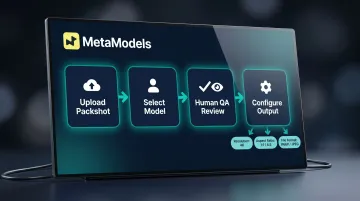
Upload your packshots to a fashion-specific AI platform that places garments onto AI models while preserving actual product details. This is different from generic AI generators (DALL-E, Midjourney), which recreate garments from text prompts and cannot guarantee accuracy.
Why fashion-specific tools matter:
Independent testing by Fstoppers found generic AI tools produce "fictional garments" that alter cut, drape, and detailing. Fashion-specific platforms use garment-transfer technology: they drape your actual product image onto the AI model rather than generating an interpretation.
MetaModels.ai, for example, preserves fabric texture, color accuracy, and fit by mapping the real garment onto generated models. Outputs then go through human fashion specialist review before delivery.
Model selection process:
Choose demographic, body type, pose, and background to match brand guidelines:
- Demographic diversity - ethnicity, age range, gender presentation
- Body type variety - different sizes and proportions across your catalog
- Pose consistency - standardize poses across product categories for visual coherence
- Background settings - neutral studio backgrounds for e-commerce or lifestyle settings for social content
Curated model libraries with customizable options and custom model creation support brand-consistent imagery across hundreds of SKUs.
Human review before download:
AI can misrepresent seams, prints, or fabric drape. Before downloading for WooCommerce upload, verify:
- Color accuracy matches the original packshot
- Garment proportions and fit are correct
- Print patterns and textures render accurately
- Fabric drape looks natural for the material type
Built-in editorial QA — where human fashion specialists review outputs before delivery — catches these errors and protects customer trust.
Configure output settings:
- Resolution: Generate at 4K when possible for retargeting flexibility (ads, lookbooks, future campaigns) without regeneration
- Aspect ratio: Match WooCommerce product image standards (typically 1:1 or 4:5 for consistency)
- File format: WebP produces 45% smaller files than JPEG at equivalent visual quality; use JPEG as fallback for broader compatibility
Step 3: Upload and Organize AI Model Images in WordPress
Choose upload method by catalog size:
Small catalogs (under 50 products): Use the WordPress Media Library directly—navigate to Media > Add New and drag-drop files. WordPress automatically compresses JPEGs to 82% quality on upload.
Large catalogs (50+ products):
Use FTP to upload into wp-content/uploads/ organized in SKU-named subfolders. This maintains structure and speeds bulk operations compared to downloading external URLs during CSV import.
Enable SKU-based automated assignment:
Plugins like Automatic Gallery And Featured Image Sync detect uploaded images by SKU and map them to products automatically:
- Free version: Matches images using post ID pattern (
{ID}-{sequence}.jpg) - Pro version: Matches using product SKU pattern (
{SKU}-{sequence}.jpg)
Consistent naming is critical: SKU-001-1.jpg becomes featured image, SKU-001-2.jpg becomes gallery position 2.
File naming enforcement:
Use this separator and sequence structure:
SKU-001-1.jpg (featured)
SKU-001-2.jpg (gallery)
SKU-001-3.jpg (gallery)
SKU-002-1.jpg (featured)
SKU-002-2.jpg (gallery)
Any deviation breaks automated assignment and forces manual intervention.
Step 4: Assign AI Model Images to WooCommerce Products and Variations
Two assignment targets in WooCommerce:
- Product featured image - primary photo shown in catalog pages and search results
- Product gallery - additional angles displayed below the featured image on product pages
For variable products (items with color/size/style options), each variation can have its own featured image that displays when customers select that option.
CSV bulk import method for large catalogs:
Prepare a WooCommerce-compatible CSV with an Images column containing comma-separated URLs:
SKU,Name,Images
SKU-001,Red T-Shirt,https://yoursite.com/wp-content/uploads/SKU-001-1.jpg,https://yoursite.com/wp-content/uploads/SKU-001-2.jpg
SKU-002,Blue T-Shirt,https://yoursite.com/wp-content/uploads/SKU-002-1.jpg,https://yoursite.com/wp-content/uploads/SKU-002-2.jpg
The first URL becomes the featured image; subsequent URLs populate the gallery. Import via WooCommerce > Products > Import. WooCommerce automatically downloads external URLs into the Media Library; alternatively, use filenames only if images are already uploaded.
Variation-level image assignment:
For fashion products with color or fabric variants, assign distinct AI model images per variation:
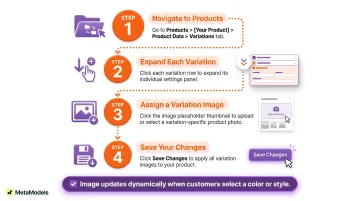
- Navigate to Products > [Your Product] > Product Data > Variations
- Click each variation to expand settings
- Click the image placeholder to assign the variation-specific model photo
- Save changes
When customers select a color or style, the displayed image updates to match. This reduces purchase uncertainty and return rates compared to showing the same photo for all variants.
What You Need Before You Start
Getting your tools, product data, and images aligned upfront saves hours of corrective work once automation is running at catalog scale.
Technical and Tool Requirements
Before anything else, confirm you have:
- WooCommerce store with SKUs assigned to all products
- AI fashion imagery platform with garment-accurate model placement (not a generic image generator)
- FTP access or bulk media upload capability for catalogs over 50 products
- CSV editing software for bulk product import preparation
Your AI platform also needs to support batch processing, export in WooCommerce-compatible formats, and resolution of at least 1024x1024px. WooCommerce recommends 800x800 as a minimum, but 4K outputs give you flexibility for ads and lookbooks down the line.
Recommended WooCommerce image standards:
| Specification | Recommendation |
|---|---|
| Minimum size | 800x800 pixels |
| Optimal size | 1024x1024 to 2048x2048 pixels |
| Aspect ratio | 1:1 (square) for consistency |
| File format | WebP (first choice), JPEG (fallback) |
| File size target | Under 200KB compressed |
Image and Product Data Readiness
Every product needs a unique SKU before you start. SKU-based file naming is what allows automated image-to-product matching — gaps in your SKU data break the workflow entirely. Export your WooCommerce product catalog and verify:
- All products have assigned SKUs
- No duplicate SKUs exist
- SKU format is consistent (no mixing
SKU-001with001orSKU001)
Your input packshots also need to meet a baseline quality standard:
- Clean white or neutral background
- Minimum 1024x1024px resolution (higher is better)
- Adequate lighting with no harsh shadows
- Minimal garment distortion or wrinkles
- Multiple angles: front, back, side, and texture detail
That last point matters more than most sellers expect. A single front-facing photo forces the AI to guess fabric texture and back-view details — the result is garment inaccuracies that require manual correction. Multiple reference angles give the model enough data to work from accurately.
Key Parameters That Affect AI Model Photo Automation Results
Three controllable variables determine whether automation produces consistently usable outputs or requires heavy rework.
Input Image Quality
AI model photo tools generate outputs by interpreting garment shape, texture, and color from the input. Blurry, low-contrast, or inconsistently lit packshots produce:
- Garment distortion in the AI output
- Misrepresented fabric colors
- Texture errors (especially for leather, metallic finishes, and intricate weaves)
Industry testing suggests a 23% error rate for AI-generated images involving complex materials when input quality is suboptimal — flagged here for source verification before publication.
Poor inputs drive up human review rejection rates, negating time savings. A batch with high-quality inputs publishes with minimal review; low-quality batches require regeneration, doubling processing time.
Model Selection Consistency
Using different AI models across a catalog creates visual inconsistency that undermines brand identity. Shoppers expect a cohesive look across category pages — mixing model styles mid-catalog breaks that.
Pre-select a default model (or a defined model set for specific categories) before batch generation. MetaModels.ai supports custom model creation tied to brand identity, so visuals stay consistent across hundreds of SKUs. Switching models partway through forces post-generation corrections that cost more time than they save.
Key decisions to lock in before batch runs:
- Default model or approved model set per category
- Background and pose style (consistent across all SKUs)
- Whether custom model creation is needed for brand fit
SKU-Based File Naming and Organization
WooCommerce image automation relies on matching files to products by SKU. Deviations in naming — spaces, incorrect SKU format, missing sequence numbers — break automated assignment.
A well-enforced naming convention enables the entire upload-to-assignment pipeline to run without per-product manual work. Naming failures discovered after generating 500 images require manual rematching of hundreds of files, eliminating any scalability benefit.
Enforce this before generation, not after:
- Create a naming template tied to your WooCommerce SKU format
- Export your SKU list and validate all filenames against it in a spreadsheet
- Catch mismatches before the batch runs — not during review
Common Mistakes and How to Fix Them
Most automation failures happen at predictable, preventable points.
Using generic AI image generators instead of fashion-specific tools
DALL-E, Midjourney, and similar tools generate plausible interpretations of garments — not accurate product representations. These tools tend to:
- Alter cut, drape, and detailing
- Create "fictional garments" that don't match the product
- Lack resolution for e-commerce zoom features
- Cannot maintain the same garment across front, back, and side views
Use AI platforms purpose-built for fashion imagery with garment-transfer technology. These preserve actual fabric texture, color, and fit by draping your photographed product onto AI models — rather than recreating the garment from scratch.
Skipping the human review step on generated images
Publishing AI model photos without review risks exposing customers to garment errors — distorted prints, incorrect drape, color shift — that erode purchase confidence and drive up returns.
Build a review step into your publishing process, or use a platform with built-in editorial oversight. MetaModels.ai, for example, has human fashion specialists check every generated image for color accuracy, proportions, and garment detail before delivery.
Mismatched or inconsistent SKU naming between product database and uploaded images
This is the most common reason automated image assignment fails silently. Images upload successfully but never link to products because the filename SKU doesn't match the WooCommerce product SKU exactly.
Validate SKU naming against your WooCommerce product data before bulk upload using a quick spreadsheet check:
- Export WooCommerce product SKUs to CSV
- List your image filenames in a column
- Use formula matching to identify discrepancies
- Correct naming before upload
Assigning only a single model photo per product instead of per variation
For fashion products with color or fabric variants, showing the same model photo across all variations creates confusion — customers can't visualize what the selected color actually looks like, which increases returns.
Generate a distinct AI model image for each variant where garment appearance differs. Then use WooCommerce's variation-level image assignment (Products > Variations > Image) to map the correct photo to each color or style option.
Alternatives to AI Model Photo Automation for WooCommerce
AI model photo automation isn't the right fit for every store or product type. Understanding where each alternative excels helps you build a workflow that actually matches your budget and catalog needs.
Traditional Professional Model Photoshoots
Best for hero products, lookbook campaigns, premium brand positioning, or garments where tactile quality and styling nuance drive the purchase decision.
Trade-offs to consider:
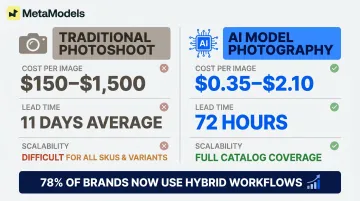
- Cost: $150–$1,500 per final retouched image vs. $0.35–$2.10 for AI-generated images
- Lead time: Traditional shoots average 11 days from booking to delivery; AI platforms deliver in 72 hours
- Scalability: Difficult to cover every SKU and variant; hard to iterate quickly for seasonal collections
78% of brands maintain hybrid workflows, keeping traditional photography for hero images while using AI for catalog-scale coverage.
Generic AI Image Generation (DALL-E, Midjourney, etc.)
These tools work for concept visuals, marketing banners, social content, or placeholder images during product development — anywhere garment accuracy isn't the priority.
They're not a viable replacement for product photography, though:
- Generate plausible approximations, not accurate representations of your actual garments
- Cannot reliably preserve fabric texture, color, or garment structure
- Unsuitable as primary WooCommerce product images for fashion listings
Flat-Lay or Ghost Mannequin Photography
A practical choice for accessories, folded knitwear, and technical apparel where garment structure reads better without a model — or for stores where model imagery isn't in the budget yet.
Trade-offs to consider:
- On-model imagery delivers 20–30% higher conversion rates than flat-lay photography for most apparel categories
- ASOS reported a 22% reduction in returns after switching to on-model AI photography
- Flat lays communicate product details clearly but don't help customers visualize fit or styling
Conclusion
Automating AI model photos for WooCommerce requires clean packshot inputs, a fashion-specific AI platform with garment accuracy verification, SKU-based file organization, and structured product/variation assignment. Each stage depends on the one before it—skipping input quality checks or naming conventions breaks the automation pipeline downstream.
Most failures trace back to two root causes:
- Wrong tool choice: Generic AI generators cannot preserve actual garment details — color accuracy, texture, drape, and fit all degrade without fashion-specific processing
- Skipped groundwork: SKU naming mismatches silently break image-to-product mapping at scale, long before any WooCommerce assignment runs
Get these two elements right, and the pipeline handles the rest. WooCommerce fashion stores can cover their full catalog — including per-variant model photos — without recurring photoshoot costs or scheduling delays. On-model imagery at that scale consistently outperforms flat-lay in conversion rate and reduces returns by giving shoppers a realistic sense of fit and drape before they buy.
Frequently Asked Questions
Can AI model photos work for all types of fashion garments?
AI model photos work best for structured clothing like shirts, trousers, dresses, and activewear. Platforms like MetaModels.ai handle stretch fabrics, compression fits, and athletic silhouettes accurately. However, highly textured items, transparent fabrics, or complex multi-layered garments may produce less accurate AI outputs requiring closer human review.
Do customers respond well to AI-generated model photos compared to real model photos?
Garment-accurate AI model photos perform comparably to traditional photography when quality is maintained. 98% of consumers say authentic images directly affect purchase decisions, and nearly 90% want transparency about AI-generated content. Disclosing AI use in your imagery policy—alongside human-reviewed garment accuracy—protects both trust and purchase confidence.
How long does it take to automate AI model photos across a large WooCommerce catalog?
Setup is the main time investment—SKU naming standardization and packshot preparation—but it pays off quickly. ASOS cut turnaround from 11 days to 72 hours using batch AI generation, and a 500-SKU catalog with proper setup can go from packshots to published images in days rather than weeks.
Can I assign different AI model photos to each product variation in WooCommerce?
Yes, WooCommerce supports variation-level image assignment. Navigate to Products > [Product] > Variations, expand each variation, and assign the specific AI model photo. Assign variation-specific images for color and style variants—showing the right garment when customers select options reduces returns.
What image resolution and format should AI model photos be for WooCommerce?
WooCommerce recommends minimum 800x800 pixels; generate at 1024x1024 or higher for zoom functionality and future reuse. WebP format produces 45% smaller files than JPEG at equivalent quality, improving page speed. Generating at 4K where possible also future-proofs images for ad retargeting and lookbooks without needing to regenerate.
Do I need to re-generate AI model photos every time I update a product or add new variants?
New variants require new generation runs for variant-specific imagery. However, an established SKU naming convention and batch workflow means new generations upload and assign quickly without rebuilding the entire pipeline. You only regenerate for changed products or new additions, not the full catalog.